How to Run Multiple Claude Code Sessions at Once
I use Claude Code for all my projects. Since requests can take 5+ minutes, I started running sessions in parallel.
Things got messy fast. Each project needed a Claude session, a dev server, and a terminal for git commands. Multiply that across projects and my laptop was drowning in terminal tabs.
So I got organized. Here's how I run 5+ Claude Code sessions at once without getting lost.
What is tmux?
tmux lets you run multiple terminals inside one tab. Close the tab, reopen it later, and everything is still running.
Key concepts:
- Session: A container that holds your terminal windows. It keeps running in the background, even if you close your terminal.
- Window: A single terminal screen. Sessions can have multiple windows, like browser tabs.
- Detach: Disconnect from a session. Like minimizing a window. It's still running, just hidden.
- Attach: Reconnect to a session to see it again.
Why tmux for Claude Code?
Claude Code sessions are long-running. You start a task, Claude works on it, and you might not need to look at it for 10 minutes. Meanwhile, you want to run git commands, check logs, or start another Claude session for a different task.
tmux makes this seamless:
- Parallel work: Claude is implementing a feature in window 1 while you run tests in window 2. No waiting.
- Persistent sessions: Close your laptop, reopen it tomorrow, and
tmux attachbrings everything back. Claude's output, your terminal history, all of it. - Mental clarity: Each project lives in one place. Switch projects by switching terminal tabs. Switch tasks within a project by switching tmux windows.
The Setup: One Tab Per Project
The solution is simple:
- One terminal tab per project
- One tmux session inside each tab
- Multiple tmux windows inside each session (Claude Code, terminal, dev server, etc.)
Your terminal tabs stay organized. One tab = one project. Inside that tab, tmux handles everything else.
Click the project tabs at the top to switch projects. Click the tmux windows at the bottom to switch between Claude, terminal, and dev server. No more hunting. Everything for a project lives in one place.
Customize for your setup
Install tmux
brew install tmuxThat's it. You're ready.
The 4 Commands You Need
1. Create a Session
Open a new terminal tab for your project, then run tmux new -s myproject:
Replace myproject with your project name. You're now inside a tmux session.
2. Create a Window
Inside your session, press Ctrl+bthenc to create windows:
Create one for Claude Code, one for your terminal, one for your dev server.
3. Switch Between Windows
Ctrl+bthennnext window
Ctrl+bthenpprevious window
Ctrl+bthen0jump to window 0 (or 1, 2, 3...)
4. Detach and Reattach
Need to pause a project? Press Ctrl+bthend to detach:
Your session keeps running in the background. Claude Code stays active. Run tmux attach -t myproject to come back.
My Typical Setup
For most projects, I have 4 windows:
- claude: main Claude Code session
- gitui: a terminal UI for git, for reviewing changes and diffs
- dev: running
pnpm devor whatever starts my dev server - bash: for quick scripts, curl commands, anything manual
For bigger features, I add a 5th window with a second Claude Code session running in a git worktree. Two Claude instances working on the same project, different branches.
Cheat Sheet
| Action | Keys |
|---|---|
| New session | tmux new -s name |
| New window | Ctrl+bthenc |
| Next window | Ctrl+bthenn |
| Previous window | Ctrl+bthenp |
| Jump to window # | Ctrl+bthen0-9 |
| Rename window | Ctrl+bthen, |
| Kill window | Ctrl+bthen& |
| Rename session | Ctrl+bthen$ |
| Detach | Ctrl+bthend |
| Reattach | tmux attach -t name |
| List sessions | tmux ls |
Start Now
- Open a terminal
- Run
tmux new -s yourproject - Run
claude
When you need another terminal for this project, press Ctrl+bthenc to create a new window.
Playground
Try it yourself. Create sessions, add windows, switch around, detach and reattach.
tmux Playground
Want more like this? Get my best AI tips in your inbox.

AI DevX Engineer at SurePath AI. Former Amazon engineer. I write about using AI effectively for work.
Recommended Articles
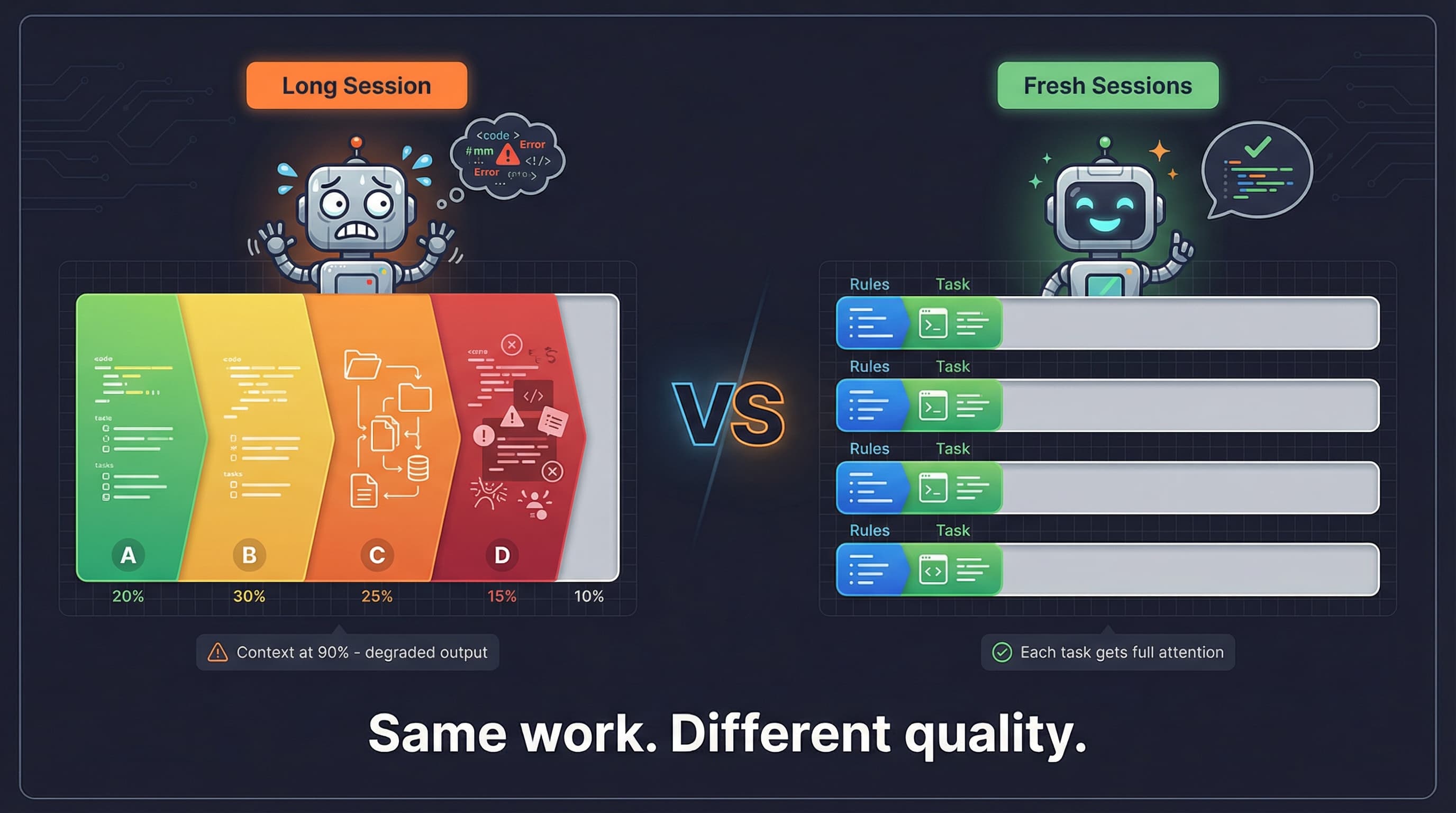
Why You Need To Clear Your Coding Agent's Context Window
Why fresh context beats accumulated context for coding agents. Research on attention degradation and practical strategies for better AI-assisted development.
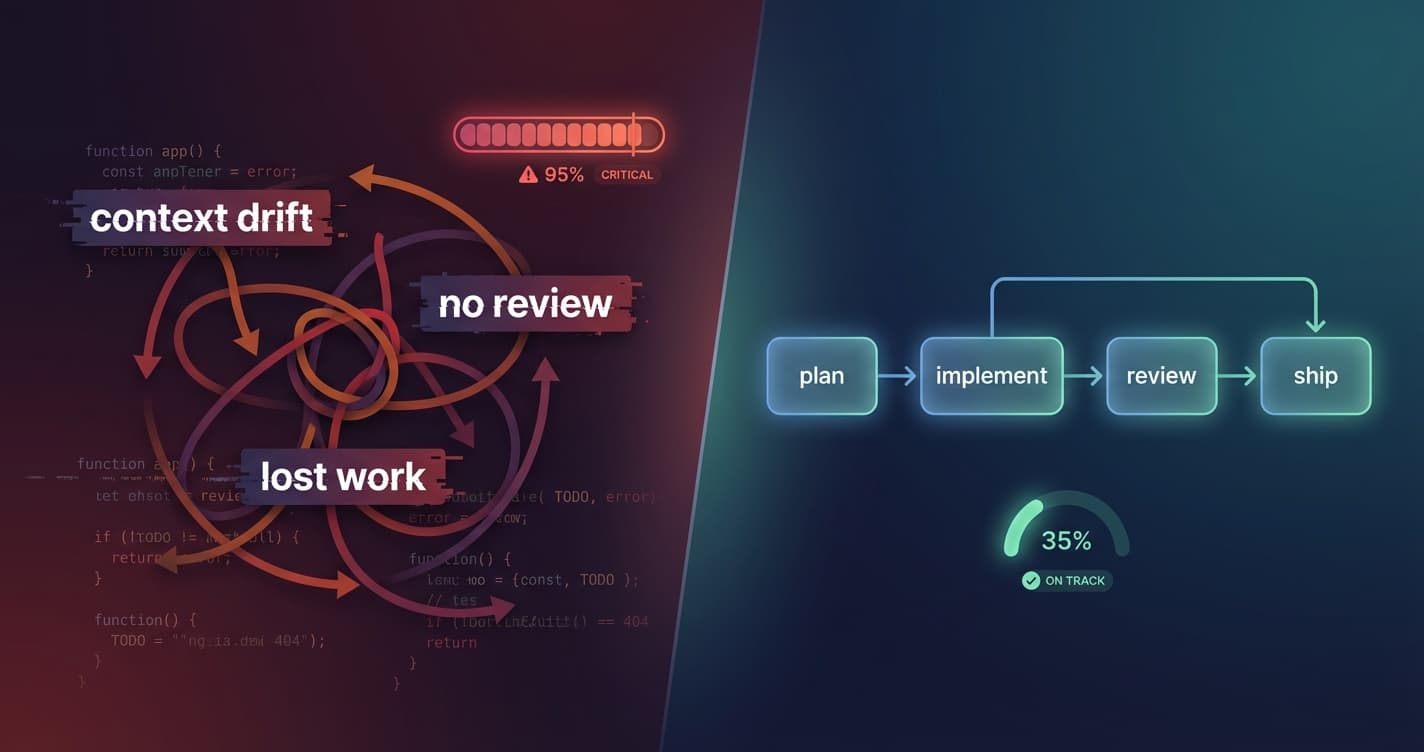
My Claude Code Workflow for Building Features
A structured workflow for using Claude Code with sub-agents to catch issues, maintain code quality, and ship faster. Plan reviews, code reviews, and persistent task management.
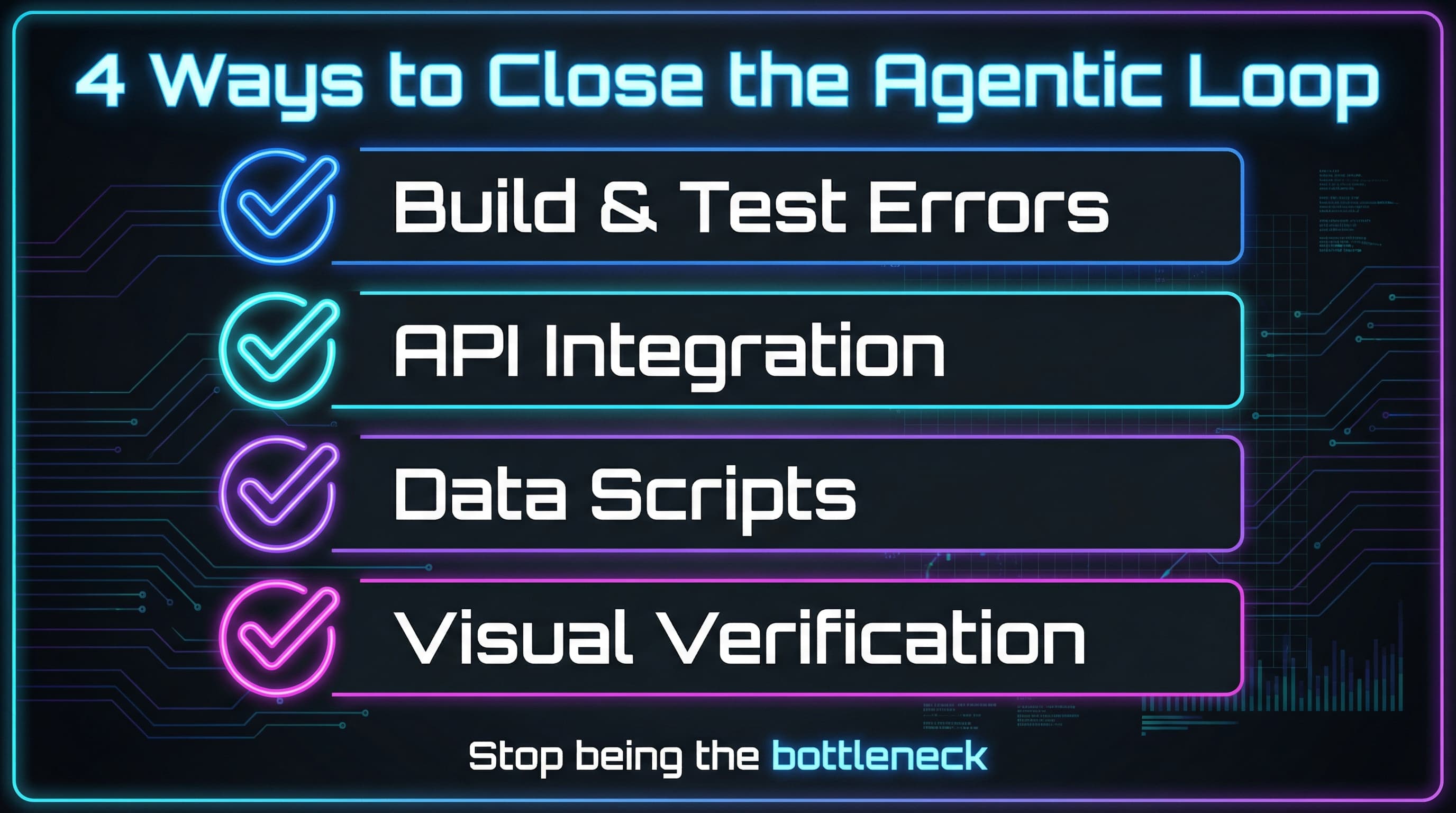
The Agentic Loop: Stop Babysitting Your Coding Agent
The more your agent can run code and feed output back to itself, the less you do. Learn how to close feedback loops and let your coding agent iterate autonomously.